02 / VISUAL IDENTITY
Vikas Editor Logo: Download the SVG & Use It Clearly
Download the original logo for vikas-editor.net. Learn how to choose SVG or PNG, preserve clear space and distinguish a site logo from an editing watermark.
Explore templates on the homepage
Looking for a Vikas Editor logo can mean several things: the icon for an editing website, a creator's signature, an overlay for a video or a mark for your own editing profile. Those are different assets. This guide provides the original mark for Vikas Editor AI at vikas-editor.net, along with practical ways to place it in a tutorial, comparison or website link.
Start with the exact website or creator
A familiar name or a large letter V is not enough to identify an asset. Check the address of the page you are describing. If your article is about this site, the charcoal square with the warm gold V and corner brackets is the appropriate mark. If you mean a different creator, get that creator's artwork and usage instructions from their own page.
The Vikasheditor guide explains the distinction between similarly named resources. For a tutorial about photo creation here, the Vikas Editor starting guide gives you the matching product workflow to link beside the mark.
Avoid extracting a logo from a small search thumbnail. It may be compressed, cropped, outdated or attached to the wrong result. A source file from the site being described is easier to verify and produces a cleaner layout.
Download this site's original logo
The file is the same SVG used in our navigation, with a 64 × 64 view box. It includes the charcoal rounded square and gold linework. That square is part of the artwork: the logo is not a floating gold V on a fully transparent canvas.
When identifying this service, pair the mark with “Vikas Editor AI” and a link to vikas-editor.net. Keep any descriptive text outside the artwork. Do not alter it to suggest that a different product, creator account or paid course is operated by this site. For partnership or other usage questions, contact support@vikas-editor.net.
SVG, PNG or JPEG: which file fits?
| Format | Useful for | What to check |
|---|---|---|
| SVG | A website, a scalable source file or a layout tool that accepts vectors. | Keep the original proportions and check that the destination supports SVG. |
| PNG | A slide, thumbnail or video editor that needs a raster image. | Export a sufficiently large copy. PNG supports transparency, but the original logo’s charcoal square remains part of the design. |
| JPEG | A finished composition with a deliberate solid or photographic background. | JPEG does not preserve transparency. Avoid using it as your master logo file. |
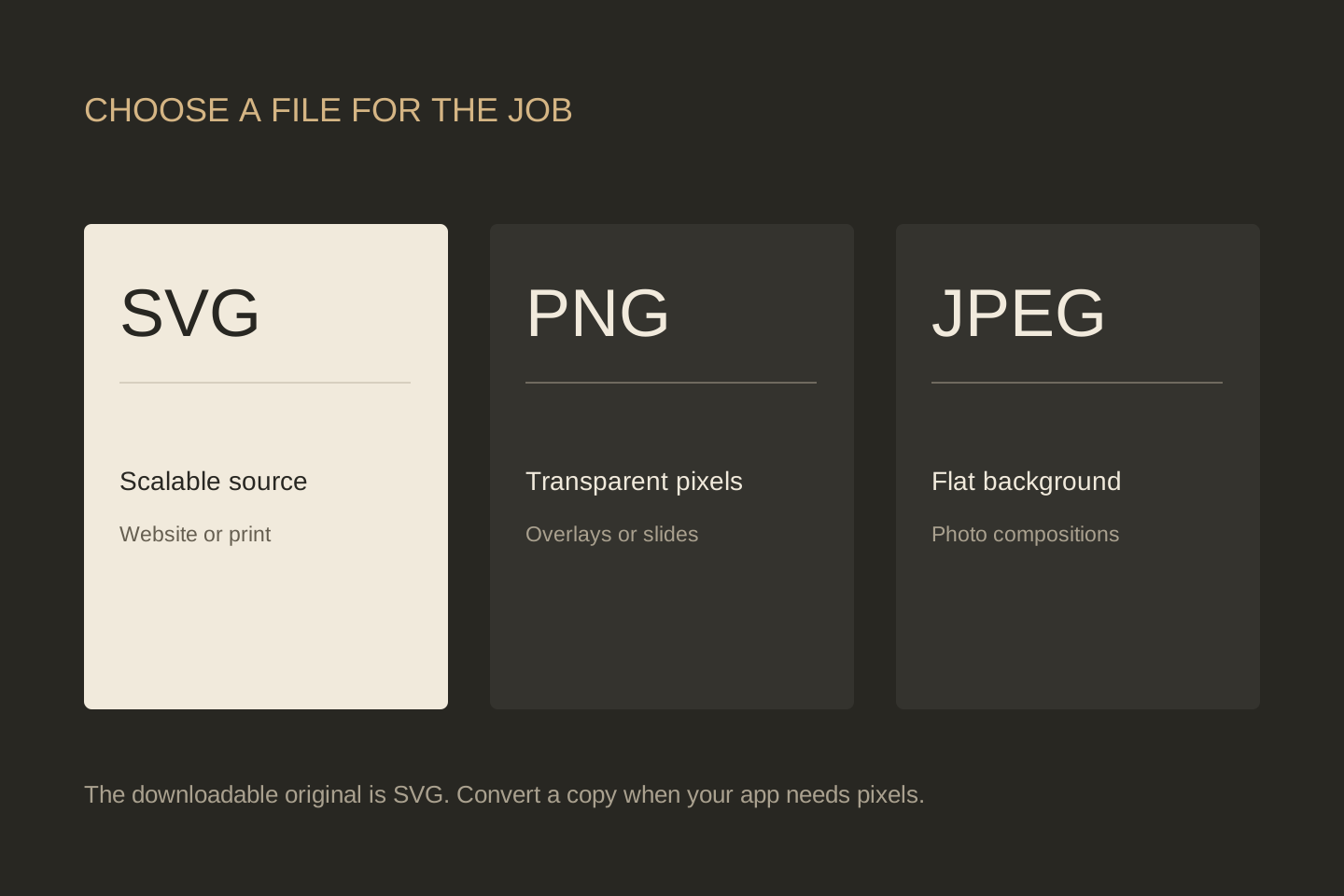
If an editor will not accept SVG, open the downloaded file in a vector editor and export a PNG. Choose a square canvas and keep the aspect ratio locked. For a small screen placement, a 512 × 512 export is a useful starting point; use a larger export if the logo will occupy more pixels. Enlarging an already small PNG cannot restore the original edge detail.
Renaming .svg to .png does not convert the file. Use an actual export command, inspect the saved image and keep the SVG separately for future sizes.
Give the mark room to remain readable
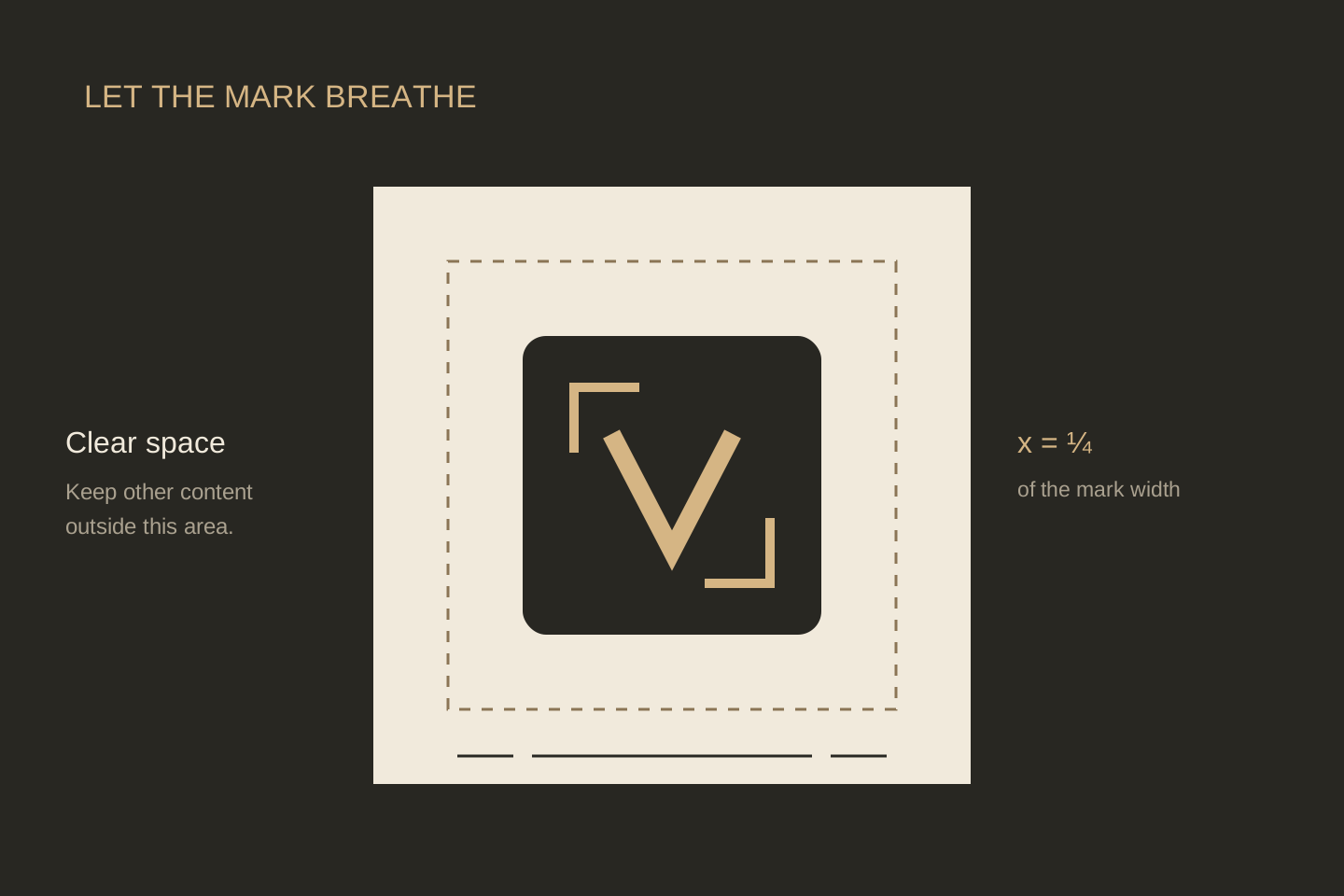
Start with the original proportions. Do not squeeze the square into a wide rectangle or crop out the corner brackets. As a practical layout recommendation, leave empty space around it equal to roughly one quarter of the mark's width. The diagram below illustrates that spacing; it is a layout aid, not a downloadable replacement logo.
For a tutorial thumbnail, place the logo away from the person's face and the main headline. On a light page, the built-in charcoal square supplies its own contrasting background. On a dark page, leave enough separation that its shape is still clear. Review the final composition at the size people will actually see, especially on a phone.
For accessibility, an image-only link to the site needs a name such as “Vikas Editor AI home.” If the same link already contains that visible text, its adjacent logo can have empty alternative text to avoid repeating the name. Describe the asset when the artwork itself is the subject of an article, as it is here.
A logo is not a watermark-removal tool
A site logo identifies a service. A watermark is an element placed on an image or video. A creator signature identifies the person who made or shared a work. Downloading one site's logo does not remove any of those elements from an existing picture.
If your goal is to make a clean composition, begin with a photo you may use and ask for a scene without added lettering. Review the output because a prompt does not guarantee perfect text handling. The prompt guide shows how to describe a scene clearly; it does not provide a way to remove someone else's attribution.
Common logo questions
Is this the official logo of Editing By Vikas?
No. It is the logo of this independent website, vikas-editor.net. Use the source website's own assets when referring to another service or creator.
Is there a transparent PNG download here?
This page supplies the original SVG. You can export a PNG in a compatible editor. The charcoal square is intentionally included, so exporting does not make that part transparent.
Can I use this as my own editing channel's logo?
Choose an original identity for your own channel so viewers can tell who made the work. Use this mark to identify this service accurately, rather than to name an unrelated account.
Where should the logo link go?
Link to the Vikas Editor homepage. A tutorial can also link directly to the relevant image studio or beginner guide, with wording that makes the destination clear.